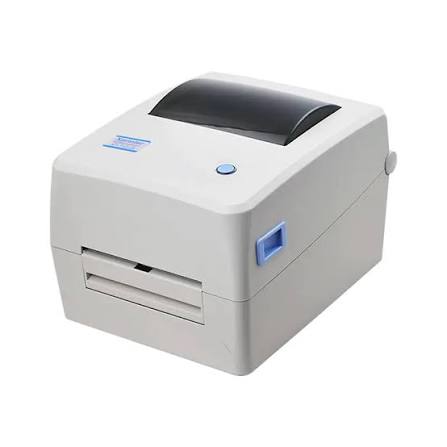

A label printer that suddenly stops printing, produces faded labels, or feeds media incorrectly can interrupt an otherwise smooth workflow. Many common issues come from simple causes such as incorrect settings, poor media loading, or connection problems.
Before assuming the hardware has failed, check the basic setup of your Xprinter label printer. Reviewing the label roll, printer settings, connection, and calibration can often identify the problem without complicated repairs.
Printer Does Not Turn On
Start by checking the power connection. Make sure the power adapter sits firmly in both the printer and the electrical outlet.
If the printer still does not respond, try another suitable outlet if available. Check the power indicator and look for any signs of damage to the cable or adapter.
Do not continue using a damaged power cable. Follow the manufacturer’s instructions for electrical or hardware faults.
Printer Is Connected but Does Not Print
A computer may recognize the printer without successfully sending print jobs to it.
First, check whether the correct printer appears in your operating system or printing software. Then look at the print queue and remove any jobs that remain stuck.
Also confirm that the printer driver matches your specific model and operating system. An incorrect or outdated driver can prevent normal communication.
Labels Feed Incorrectly
Labels that move crookedly, advance too far, or stop in the wrong position often indicate a media-loading or calibration issue.
Open the printer and check whether the label roll sits correctly in the holder. Make sure the media follows the intended path and remains straight.
If the labels still feed incorrectly, run the appropriate calibration procedure for your model.
Printer Skips Labels
When the printer skips one or more labels, check the media sensor and label configuration.
The printer needs to recognize where each label begins and ends. Incorrect label dimensions or a mismatch between the media and sensor settings can interfere with this process.
Check the selected label size in the printer driver and confirm that it matches the physical labels.
Printing Is Faded
Faded printing can have several causes. The print darkness may be too low, the print speed may not suit the media, or the label material may not work properly with the printer’s printing method.
Check the print settings first. If adjusting them does not help, inspect the print head for dirt or residue.
A dirty or worn print head can reduce print quality, so follow the manufacturer’s cleaning and maintenance guidance.
Printing Is Too Dark
Excessively dark output can also indicate incorrect settings.
Try reducing the print darkness or adjusting the print speed according to the printer and media requirements. Avoid making large changes without checking the result because excessive heat may affect some labels.
Print a small test batch after each adjustment.
Text or Barcodes Look Blurry
Blurry output can result from unsuitable media, incorrect resolution settings, excessive print speed, or a dirty print head.
Check whether the label material matches the printer’s specifications. Then inspect the print head and review the print settings.
For barcode labels, make sure the code has enough space and contrast. A barcode that appears distorted may fail to scan even when the surrounding text looks acceptable.
Labels Print in the Wrong Position
When the content consistently appears too high, too low, or too far to one side, check the label dimensions and print layout.
The software and printer driver should use the same label width and height as the physical media. Incorrect margins or orientation settings can also shift the printed content.
Calibration may help when the printer’s physical label position does not match the configured settings.
Labels Keep Getting Jammed
Frequent jams may occur when the media does not sit correctly, the label path contains debris, or the labels do not match the printer’s specifications.
Turn off the printer before removing a serious jam and follow the manufacturer’s recommended procedure. Do not pull stuck media aggressively because this could damage internal components.
Check the label roll for damaged, folded, or loose sections before loading it again.
Printer Disconnects During Printing
For USB connections, check the cable and the computer’s USB port. A loose or damaged cable can interrupt communication.
For network or wireless connections, verify that the printer remains connected to the correct network. With Bluetooth, check that the printer and device remain paired and within a suitable range.
If the connection repeatedly drops, test another compatible connection method when available.
Printer Produces Blank Labels
Blank output can result from incorrect media selection, improper label placement, or a printing technology mismatch.
Check whether the labels are suitable for the printer. For direct thermal printing, the heat-sensitive side of the media needs to face the print head correctly.
If the printer uses thermal transfer technology, check that the ribbon is installed correctly and matches the required media.
Print Quality Changes During a Batch
When the first labels look good but later labels become faded or uneven, inspect the print head and media path.
Dust, adhesive residue, or accumulated heat can affect longer print runs. Check the printer’s recommended operating conditions and maintenance requirements.
If the problem continues after cleaning and adjusting the settings, the printer may need professional inspection.
A Simple Troubleshooting Checklist
Before seeking technical assistance, work through these basic checks:
- Confirm that the printer has power.
- Check the label roll and media path.
- Verify the label dimensions in the software.
- Confirm that the correct driver is installed.
- Check the connection between the printer and device.
- Calibrate the labels when positioning is incorrect.
- Inspect and clean accessible printer components according to the manufacturer’s instructions.
- Print a small test label after making adjustments.
This process can help separate configuration problems from possible hardware faults.
Also, find out about Building a Long-Term Partnership with a Trusted Receipt Printer Supplier
When Should You Stop Troubleshooting?
Some problems require more than basic adjustments. Persistent mechanical noises, repeated jams, damaged components, electrical problems, or faults that remain after proper configuration may require professional service.
Avoid opening internal components or attempting repairs unless you have the appropriate technical knowledge and the manufacturer’s guidance permits it.
Continuing to operate a printer with a serious mechanical or electrical fault may cause additional damage.
Final Thoughts
Most label printer problems have a practical starting point. Check the media, settings, calibration, connection, and print head before assuming that the printer itself has failed.
A methodical troubleshooting process can help you identify common issues such as faded output, incorrect positioning, connection failures, and feeding problems. When basic checks do not resolve the issue, follow the manufacturer’s support and service recommendations.